Get started with Herdy
Connect to your machine, open a terminal, and pick up your remote work from your phone.
Add your first host
Have your host address, SSH username, and password or private key ready. Your phone must be able to reach the host over your network or VPN.
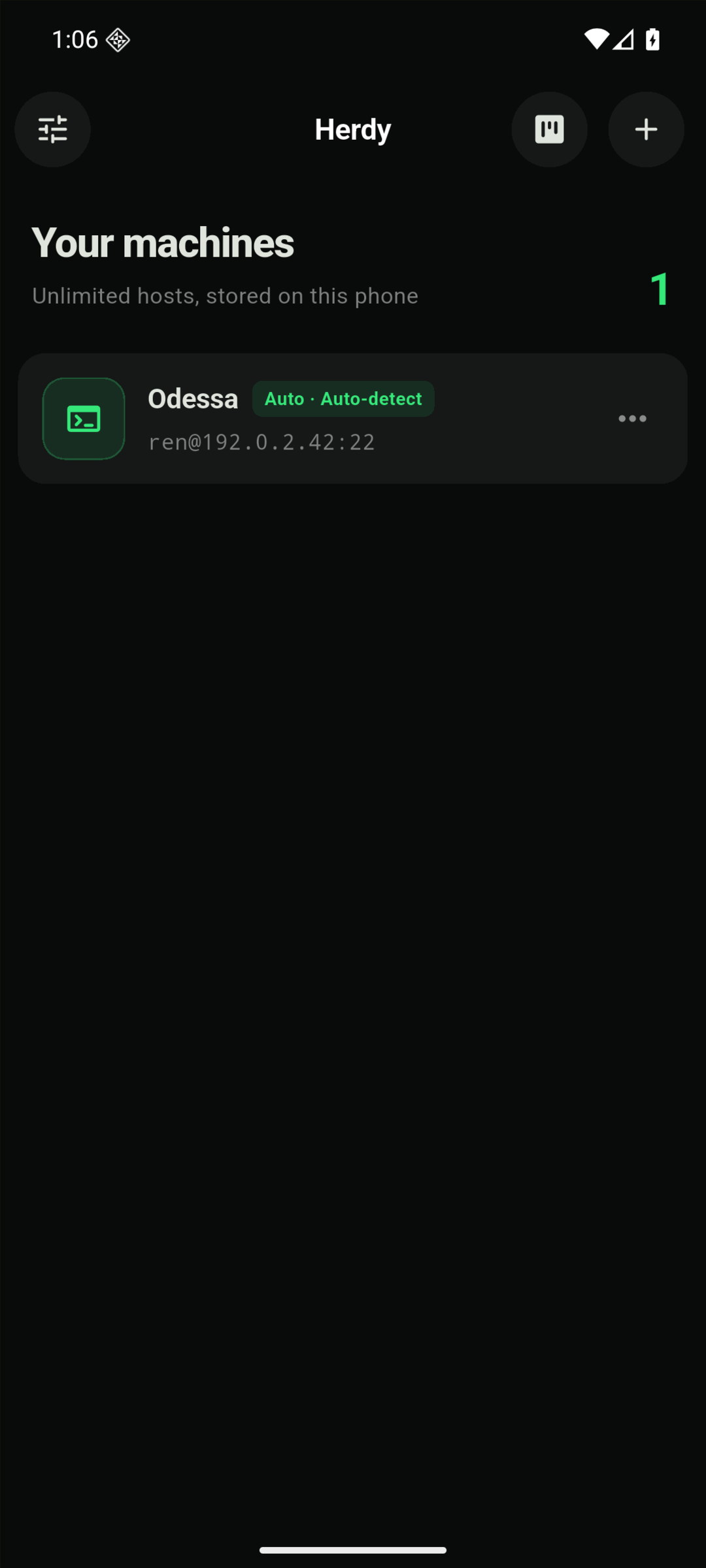
- Open Herdy and tap Add host, or the + in the top right.
- Give the host a name. Enter its hostname or Tailscale IP, your username, and the SSH port. The default port is 22.
- Choose Password or Private key and provide the matching credentials.
- Tap Save and connect. Next time, select the saved host from your host list.
The saved host appears with its name, address, and connection mode.
Choose SSH or Mosh
SSH (Secure Shell) connects your phone to a terminal on your remote machine. Mosh is an alternative transport designed to handle interrupted networks. In Herdy's host form, find Transport and use the Connection type selector.
- Auto
- Tries Mosh when the host supports it, then falls back to SSH.
- SSH
- Uses SSH directly. Choose this when your host or network cannot use Mosh.
- Mosh
- Helps a terminal connection survive sleep and network changes. The remote host needs Mosh support, and its UDP port must be reachable.
Return to a session
Herdr, tmux, and Zellij manage terminal sessions on your remote machine. They must be installed on the host to use their respective sessions. Herdy's connection picker detects available sessions; choose one to attach to it, or create one from the picker.
Persistent sessions run on the remote machine. After a disconnect, reconnect to the same host and select the session again. If the session was stopped or the host restarted, it may no longer be available.
Make it yours
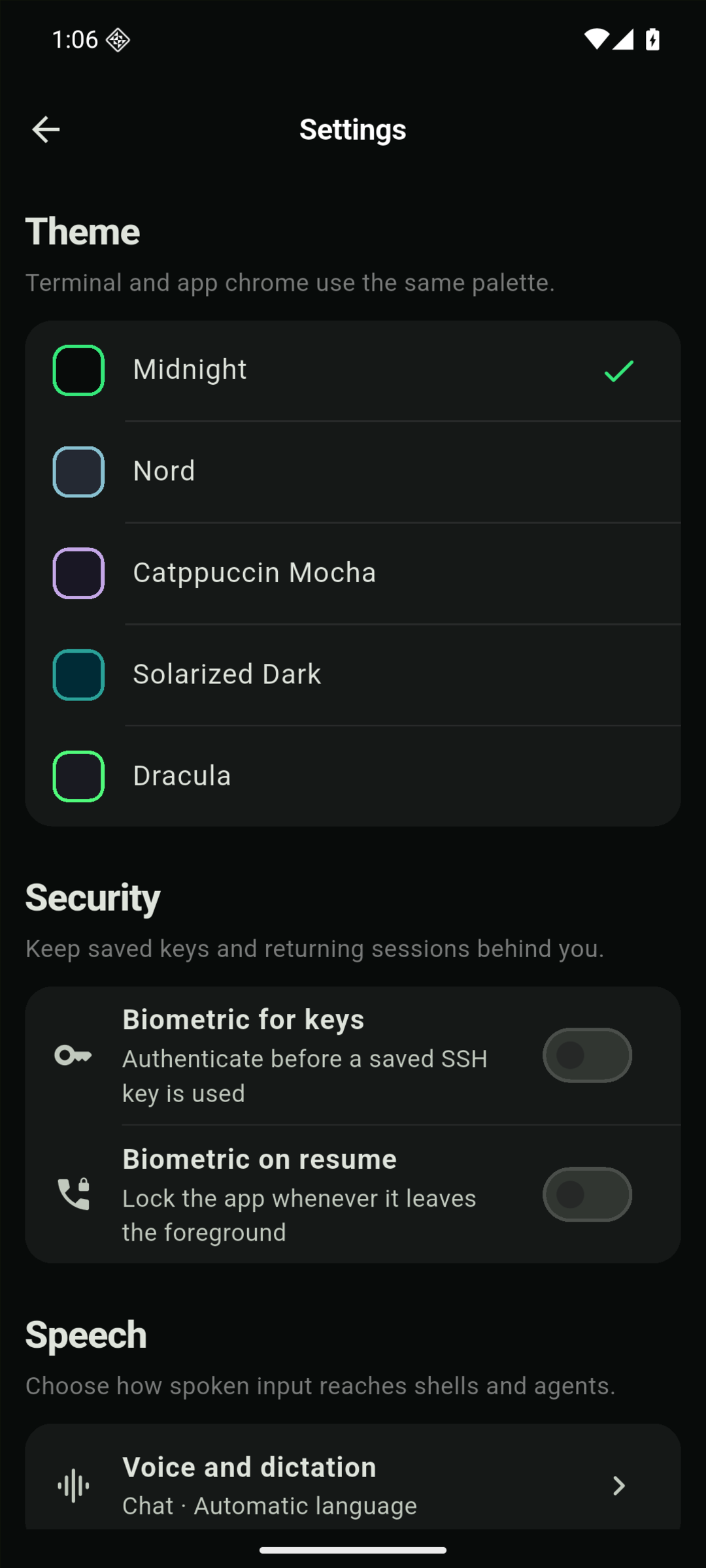
Open Settings using the sliders button at the top left of the host list.
Theme
Choose a palette for the terminal and app controls. The screenshot shows Midnight selected.
Biometric controls
Biometric for keys requires authentication before a saved SSH key is used. Biometric on resume locks the app when it leaves the foreground.
Voice input
Open Voice and dictation to configure spoken input. See the privacy policy for how device speech services may process audio and transcription.
Connection problems
The host cannot be reached
Check the address and port, confirm that SSH is running on the host, and make sure your phone is on the required network or VPN.
Authentication fails
Check the username and authentication method. The password or key must be accepted by that account on the remote host.
Mosh fails but SSH works
Select SSH to connect. Check the remote Mosh installation and UDP access before trying Mosh again.
Still stuck?
Email support with your device, the connection mode, the error message, and what you expected. Leave out passwords and private keys.